Disc to Plex: The Complete Workflow
The short version
You rip a disc with MakeMKV, name the file correctly, put it in the right folder, and point Plex or Jellyfin at the folder. The server pulls posters, ratings, and metadata automatically. You watch it on your TV, phone, or tablet like any streaming service, except you own everything on the shelf.
If you haven’t ripped a disc yet, start with our ripping guide. If your drive needs a firmware flash first, we have a flashing guide for that. This guide picks up where those leave off.
Naming your files
This is the single most important step. Get the naming right and Plex handles everything else. Get it wrong and you’ll spend hours manually fixing mismatched metadata.
The format Plex expects is:
Movie Title (Year).mkvInside a folder with the same name:
Movies/
  The Shining (1980)/
    The Shining (1980).mkv
  Alien (1979)/
    Alien (1979).mkv
  Blade Runner (1982)/
    Blade Runner (1982).mkv
Every movie gets its own folder. The folder name and the filename match. Year in parentheses. That’s it.
Some things that trip people up:
- Use the original release year, not the 4K release year. Blade Runner is (1982), not (2023).
- Match the title exactly to what TMDB or IMDb uses. “The Shining” not “Shining, The”. Plex matches against The Movie Database, so if the title there uses a colon or subtitle, include it.
- Avoid special characters that break file systems. Windows doesn’t allow colons in filenames, so “Spider-Man: No Way Home” becomes “Spider-Man - No Way Home” or “Spider-Man No Way Home”. Plex handles both.
If you have multiple versions
If you keep both a 4K remux and a compressed version of the same film, Plex can show them as one entry with a version selector. Name them with edition tags:
Blade Runner (1982)/
  Blade Runner (1982) - 4K Remux.mkv
  Blade Runner (1982) - 1080p.mkv
Or for different cuts:
Blade Runner (1982)/
  Blade Runner (1982) {edition-Final Cut}.mkv
  Blade Runner (1982) {edition-Theatrical}.mkv
The {edition-Name} tag is how Plex identifies them as separate editions of the same film. Note that adding or editing edition tags requires a Plex Pass subscription for the server admin account.
Where to store everything
A single 4K remux runs 50 to 80 GB. Ten films is half a terabyte. A hundred films is 5 to 8 TB. This grows fast.
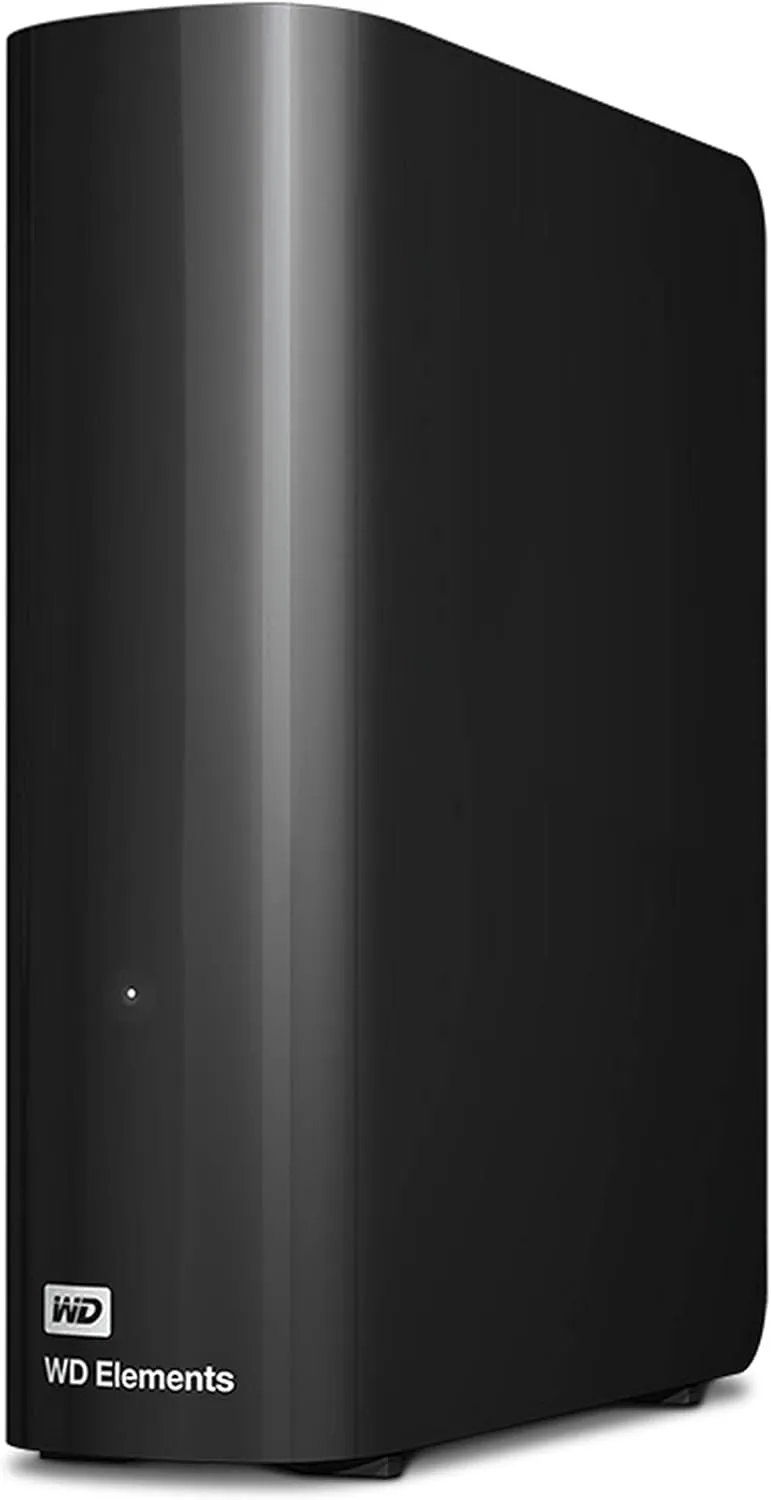
If you’re just starting, a USB external drive is the simplest option. Plug it into whatever machine runs your Plex server. A WD Elements Desktop 20TB holds 250 to 300 remuxed 4K titles and costs less than four boutique Blu-rays. No network config, no enclosure, no setup beyond plugging it in.
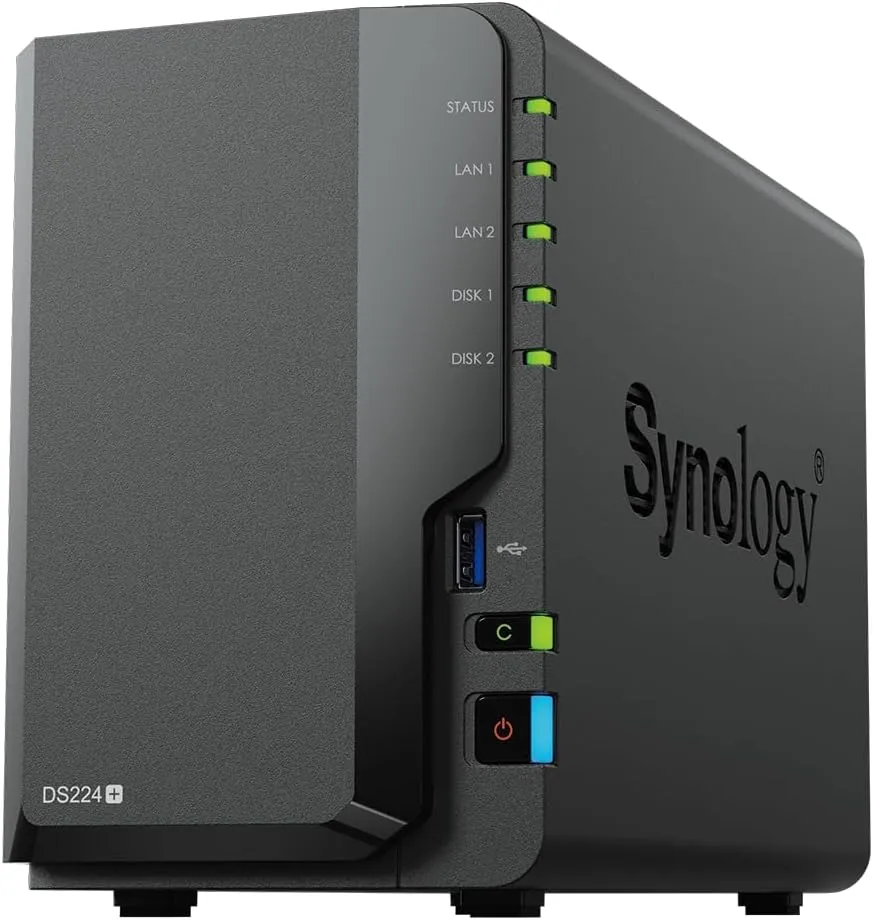
When you outgrow one drive, a NAS is the next step. A Synology DS224+ with two drives gives you redundancy and room to grow. The full breakdown is on our storage page.
To compress or not
MakeMKV outputs a remux. That’s a lossless copy of the video and audio from the disc. The quality is identical to the disc. The file size is large.
Handbrake can compress a remux down to 15 to 25 GB per film using HEVC (H.265) encoding. You lose some quality. How much depends on your settings and how closely you look.
The community is split on this. Some collectors keep remuxes only, reasoning that storage is cheaper than re-ripping. Others compress everything because they stream to devices that would transcode the remux anyway. Both approaches are valid.
If you do compress, the community-recommended Handbrake preset for 4K is:
- Encoder: H.265 (x265)
- Quality: RF 20-22 (lower number = higher quality. At 4K resolution compression artifacts are less visible, so you don’t need to go as low as you would for 1080p. RF 20 is visually transparent for most people.)
- Encoder preset: Slow (better compression at the cost of encoding time)
- Audio: Passthrough for the primary track (preserves Atmos/DTS:X/TrueHD)
A 4K encode at RF 20 with the slow preset takes 2 to 6 hours per film depending on your hardware. If you have a recent NVIDIA GPU, Handbrake can use NVENC hardware encoding which is dramatically faster at slightly lower quality per bitrate.
Our recommendation for beginners: Keep remuxes. Storage is cheap. You can always compress later, but you can’t un-compress.
Setting up Plex
Install Plex Media Server on whatever computer has the drive attached. It runs on Windows, macOS, and Linux. The installer is at plex.tv.
Once installed, open the web interface (usually http://localhost:32400/web) and add a library:
- Choose “Movies” as the library type
- Point it at your Movies folder (the one containing all the individual film folders)
- Plex scans the folder and matches each film against The Movie Database
- Posters, ratings, cast info, and descriptions fill in automatically
If Plex mismatches a film (rare with correct naming), you can fix it manually by clicking the three-dot menu on the film and choosing “Fix Match.”
The direct play problem
This is the thing that catches most people after they get Plex running. Your 4K remux looks perfect on the server machine, but when you try to watch it on your TV or phone, it buffers or looks worse than the disc.
The issue is transcoding. When the playback device can’t handle the file format natively, Plex converts it in real time on the server. Transcoding a 4K HEVC file requires a powerful CPU or a recent GPU. Most home servers can’t do it smoothly, and even when they can, the quality drops.
The goal is direct play. That means the server sends the file exactly as-is and the client device decodes it. No conversion, no quality loss, no server load.
To get direct play working:
- Use a capable client device. Apple TV 4K, NVIDIA Shield, Amazon Fire TV Stick 4K Max, and recent smart TV apps all support direct play of HEVC with HDR10. Older Roku devices and web browsers often force transcoding.
- Use ethernet when possible. 4K remuxes can hit 80+ Mbps bitrates. Wi-Fi can handle it if your signal is strong, but ethernet removes the variable entirely.
- Check your Plex client settings. Set “Remote Quality” and “Home Quality” to Original/Maximum. Some Plex clients default to a lower quality that triggers transcoding even on a local network.
- Avoid PGS subtitles if possible. PGS subtitles (the default on Blu-ray rips) are image-based, not text-based, and force transcoding on most devices. Only the NVIDIA Shield and Apple TV 4K handle them natively. If you need subtitles, use SRT files instead, which direct play on everything.
You can check whether a stream is direct playing by opening the Plex dashboard on the server while something is playing. It shows “Direct Play” or “Transcoding” for each active stream.
Jellyfin as an alternative
Everything above applies to Jellyfin too. Same folder structure, same naming convention, same direct play considerations. Jellyfin is fully open source, has no subscription model, and the community preference has been shifting toward it. The client app selection is slightly smaller than Plex but covers all the major platforms.
If you’re starting fresh and don’t need Plex’s larger ecosystem (Plexamp for music, broader smart TV support), Jellyfin is worth trying first.
The whole pipeline at a glance
- Rip the disc with MakeMKV (ripping guide)
- Name the MKV file as
Movie Title (Year).mkv - Put it in a folder with the same name inside your Movies directory
- Plex or Jellyfin picks it up, pulls metadata, and it’s ready to watch
That’s the core loop. Everything else is optimization.