How to Flash Your Drive for 4K UHD Ripping
Firmware versions, flash procedures, and drive compatibility change regularly. This article explains the concepts and walks through the general process, but the Ultimate UHD Drives Flashing Guide on the MakeMKV forum is the living document maintained by the people who write the firmware. Always cross-reference the forum thread for your specific drive model before flashing. If anything here conflicts with what the forum says, the forum is correct.
Why you need to flash
Every UHD-capable Blu-ray drive ships with stock firmware that blocks software from reading 4K disc content directly. The stock firmware routes UHD playback through AACS 2.0, which requires a licensed player app. MakeMKV does not use AACS 2.0. It uses LibreDrive, a mode that reads the raw disc data by bypassing that restriction entirely.
Flashing replaces the stock firmware with a modified version (marked “MK” in the filename) that enables LibreDrive. After a successful flash, MakeMKV will show “LibreDrive Information: Status: Enabled” in the drive info panel. That means it’s working.
What you need
On Windows (recommended for flashing):
- MakeMKV v1.15.1 or higher installed
- SDFtool Flasher v1.3.6 (a Windows GUI that wraps MakeMKV’s command-line flasher)
- The All You Need Firmware Pack (download links are in the SDFtool Flasher forum post)
On macOS:
- MakeMKV installed (the
makemkvconcommand-line tool ships with it) - The
sdf.binfile (included in the All You Need Firmware Pack) - The firmware
.binfile for your drive from the All You Need Firmware Pack
SDFtool Flasher is Windows only. On macOS you use MakeMKV’s command-line tool directly. The process is slightly more involved but works fine.
Before you start: Make sure the drive tray is closed and empty. No disc inserted. Do not interrupt the flash once it starts.
Find your drive model and SVC code
Before flashing, you need to know exactly what drive you have. The SVC code is printed on a label on the bottom or back of the drive. It looks like “SVC: NB12” or “SVC: NB52” or similar.
Open MakeMKV and check the drive information panel on the right side. It will show your drive model, current firmware version, and drive platform. The drive platform should say MT1959. If it does not, your drive cannot be flashed with this method.
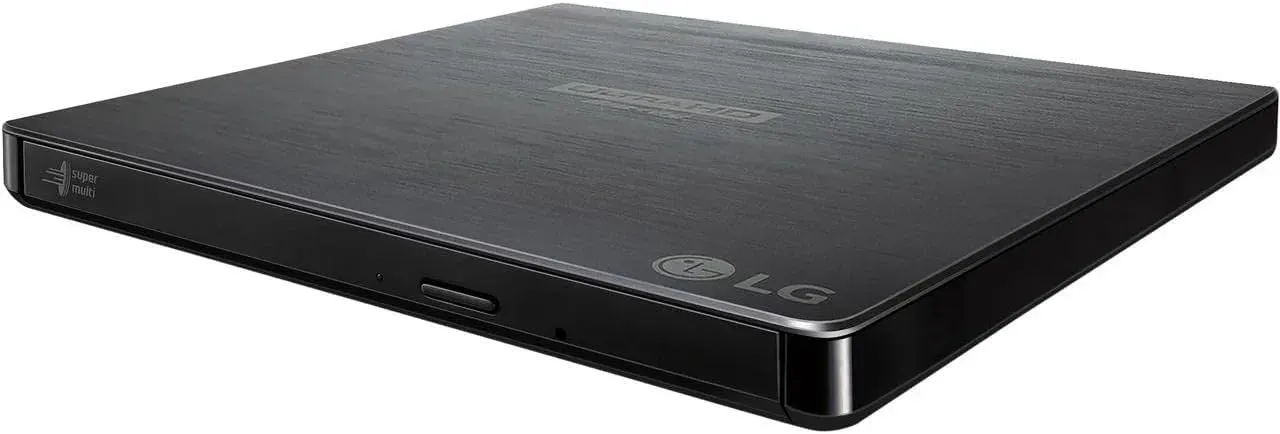
LG BP60NB10
The BP60NB10 is a single-step flash. This is the simplest process of any drive listed here. Cross-reference the flashing guide for the latest firmware filenames.
SVC code: Usually NB12 (check your label)
Target firmware: BP60NB10 1.02-MK
Windows (SDFtool Flasher):
- Open SDFtool Flasher
- Select your drive from the dropdown at the top
- Select WRITE
- In the firmware dropdown, select
BP60NB10-NB12-1.02-MK(match the NB number to your SVC code) - Click START
- Wait for it to finish. The drive list will refresh when it’s done.
macOS (command line):
- Open Terminal
- Find your drive ID:
cd /Applications/MakeMKV.app/Contents/MacOS
./makemkvcon f -l- Note the device ID (looks like
/IOBDServices/B2B64D9A) - Flash the firmware:
./makemkvcon f -d '/IOBDServices/YOUR-ID' -f /tmp/sdf.bin rawflash enc -i /tmp/DE_LG_BP60NB10_1.02-MK.binVerify: Open MakeMKV, check drive info. You should see “LibreDrive Information: Status: Enabled” and the firmware version should show 1.02.
LG BP50NB40
The BP50NB40 requires a two-step flash. This is because the BP50NB40 firmware itself is not UHD-capable even in its MK form. You flash it to the MK version first, then cross-flash to the BP60NB10 or BU40N platform which has UHD support.
This is where most people get confused, and where most failed flashes happen. Follow the steps exactly. The SDFtool Flasher thread has a dedicated NB52 section with the current firmware filenames.
SVC code: Usually NB50 or NB52 (check your label. This matters.)
Step 1: Flash to the MK version of your current firmware
- Open SDFtool Flasher
- Select your drive
- Select WRITE
- Select
BP50NB40 (NB50) 1.03-MKfrom the firmware dropdown - Click START
- Wait for completion
Step 2: Cross-flash to a UHD-capable platform
- Select your drive again
- Select RECOVERY (not WRITE)
- A file browser will pop up. Select the
BP50NB40 (NB50) 1.03-MKfirmware you just flashed in Step 1. This tells the tool what’s currently on the drive. - In the main firmware dropdown, select
BP60NB10 1.00-MKorBU40N 1.00 - Click START
The difference between BP60NB10 1.00-MK and BU40N 1.00 as the target: BP60NB10 firmware only works with MakeMKV and AnyDVD. BU40N 1.00 firmware works with all ripping software. If you only plan to use MakeMKV, either one is fine.
macOS (command line):
The two-step process on macOS uses three sequential commands:
./makemkvcon f -d '/IOBDServices/YOUR-ID' -f /tmp/sdf.bin rawflash enc -i /tmp/HL-DT-ST-BD-RE_BP50NB40-NB50-1.03-NM00800-212005070917.bin
./makemkvcon f -d '/IOBDServices/YOUR-ID' -f /tmp/sdf.bin rawflash full -i /tmp/HL-DT-ST-BD-RE_BP50NB40-NB50-1.03-NM00800-212005070917.bin
./makemkvcon f -d '/IOBDServices/YOUR-ID' -f /tmp/sdf.bin rawflash main -i /tmp/DE_LG_BP60NB10_1.00_MK_HBD.bin
Run them one at a time. Wait for each to complete before running the next.
Verify: Open MakeMKV, check drive info. “LibreDrive Information: Status: Enabled” confirms success.
Common mistake: Flashing the same 1.03-MK firmware twice instead of switching to BP60NB10 or BU40N in Step 2. If your drive shows BP50NB40 1.03-MK in MakeMKV after both steps, you only did Step 1 twice. Go back and do Step 2 properly using RECOVERY mode.
ASUS BW-16D1HT
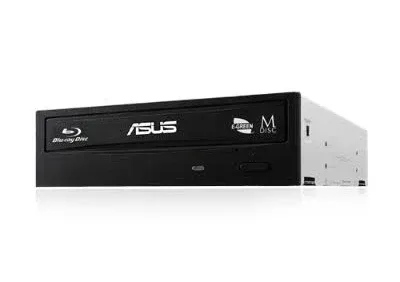
The ASUS BW-16D1HT is a single-step flash, similar to the BP60NB10. Verify the current firmware version in the flashing guide before proceeding.
Target firmware: ASUS-BW-16D1HT-3.10-MK
Important: Your drive must have the MT1959 platform. Check MakeMKV drive info before flashing. If you have firmware version 3.10 already installed (non-MK), flash to 3.10-MK first, as this version re-enables the ability to downgrade or change firmware later. If you skip this and flash directly to an older version, you may lose the ability to change firmware.
Windows (SDFtool Flasher):
- Open SDFtool Flasher
- Select your drive
- Select WRITE
- Select
ASUS-BW-16D1HT-3.10-MKfrom the firmware dropdown - Click START
- Reboot your computer after flashing. The ASUS specifically needs a reboot before the new firmware takes full effect. This catches people off guard.
Verify: After reboot, open MakeMKV. “LibreDrive Information: Status: Enabled” and “Microcode access re-enabled” confirm the flash worked.
LG WH16NS60 and WH16NS40
These internal 5.25” drives are out of production but widely owned. The process is straightforward if you have one. Check the flashing guide for the latest firmware filename.
Target firmware: WH16NS60 1.02-MK (yes, for both drives. The WH16NS40 gets cross-flashed to WH16NS60 firmware.)
Windows (SDFtool Flasher):
- Open SDFtool Flasher
- Select your drive
- Select WRITE
- Select
WH16NS60 1.02-MK - Click START
For the WH16NS40, this is technically a cross-flash (NS40 to NS60 firmware), but the drives are similar enough that SDFtool handles it as a single WRITE operation.
Verify: MakeMKV drive info should show “LibreDrive Information: Status: Enabled.”
Verbatim 43888
The Verbatim 43888 is a shell around an internal drive. Which drive is inside depends on when it was manufactured. See the flashing guide for how to identify yours and which firmware to use.
If it has a Pioneer BDR-UD04 inside (older units, pre-2025): It works out of the box. No flash needed. LibreDrive is enabled on stock firmware.
If it has an LG BU40N inside (newer units, 2025+): Flash it to BU40N 1.03-MK using the same single-step WRITE process as the BP60NB10.
To find out which drive is inside, plug it in and check MakeMKV’s drive info. The drive model will show either “BDR-UD04” (Pioneer) or “BU40N” (LG).
Things that will brick your drive
These are not theoretical. People have reported these failures on the MakeMKV forum.
Flashing desktop firmware to a slim drive (or vice versa). Desktop drives (WH16NS60, BW-16D1HT) use different firmware than slim external drives (BP60NB10, BP50NB40, BU40N). Cross-flashing between these categories will brick the drive. SDFtool Flasher has some guardrails for this, but do not override them.
Flashing firmware for the wrong SVC code. A BP60NB10 with SVC NB12 needs NB12 firmware. If you flash NB10 firmware to an NB12 drive, it may not work correctly. Always match the SVC code.
Interrupting the flash. Do not unplug the drive, close SDFtool, or shut down your computer while a flash is in progress. The drive has no fallback firmware. If the flash is interrupted partway through, the drive is unusable.
Flashing a drive with platform other than MT1959. If MakeMKV shows a different drive platform, the MK firmware is not compatible. Do not attempt the flash.
If something goes wrong
If you flashed the wrong firmware and the drive still powers on (tray opens, shows up in the OS), you can usually recover using SDFtool’s RECOVERY mode. Select the drive, choose RECOVERY, identify the current (wrong) firmware, then select the correct target firmware.
If the drive is completely unresponsive (no power, not detected by the OS), the drive is bricked. This is rare and typically only happens when desktop/slim firmware is mixed or the flash was interrupted. There is a low-level recovery method called DOSflash, but it requires specific hardware and is beyond the scope of this guide.
After flashing
Insert a 4K UHD disc. Open MakeMKV. If the drive reads the disc and shows the title list, you’re done. The flash is permanent and survives reboots, driver updates, and OS reinstalls. You do not need to re-flash.
The only reason to flash again would be if MakeMKV releases a new MK firmware version with updated AACS support, which happens occasionally when new disc protections appear.